
Bose earbuds are known for premium sound quality, industry-leading noise cancellation, and seamless wireless performance. However, many users still search for clear instructions on how to pair Bose earbuds, especially when switching devices, connecting to an iPhone, or troubleshooting pairing issues.
This detailed guide explains how to connect Bose earbuds, how to put Bose earbuds in pairing mode, and specifically how to pair Bose QuietComfort earbuds with Android, iPhone, Windows, and Mac devices. Whether you are a first-time user or reconnecting your earbuds, this article covers everything you need to know.
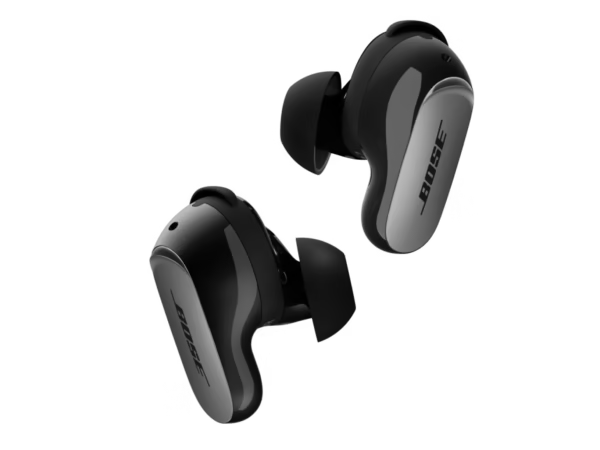
Bose QuietComfort Ultra Earbuds (2nd Gen)
Bose QuietComfort Ultra Earbuds (2nd Gen) deliver industry-leading ANC, immersive audio, CustomTune™ sound calibration, Bluetooth 5.3 multipoint, wireless charging, and a secure in-ear fit—perfect for travel, work, and premium everyday listening.
How to Pair Bose Earbuds (General Method for All Models)
Most Bose true wireless earbuds follow a similar pairing process. This method works for popular models such as:
- Bose QuietComfort Earbuds
- Bose QuietComfort Earbuds II
- Bose QuietComfort Ultra Earbuds
- Bose Sport Earbuds
Step-by-Step: How to Connect Bose Earbuds
- Charge your earbuds
- Ensure both earbuds and the charging case have sufficient battery.
- Low battery can prevent pairing.
- Insert earbuds into the charging case
- Keep the lid open during pairing.
- Activate pairing mode
- Press and hold the Bluetooth button on the charging case (usually on the back).
- Hold for 5–10 seconds until the LED blinks blue.
- Enable Bluetooth on your device
- Open Bluetooth settings on your phone, tablet, or computer.
- Select your Bose earbuds
- Tap on the earbuds name (e.g., Bose QuietComfort Earbuds).
- Wait for the confirmation message.
Your Bose earbuds are now successfully paired.
How to Put Bose Earbuds in Pairing Mode
Putting Bose earbuds into pairing mode is essential when connecting to a new device or fixing connection problems.
How to Put Bose Earbuds in Pairing Mode (Detailed)
- Place both earbuds inside the charging case.
- Keep the case lid open.
- Press and hold the Bluetooth button until the LED flashes blue.
- Release the button once the flashing starts.
If the LED does not blink blue:
- Charge the case fully
- Reset the earbuds (instructions below)
How to Pair Bose Earbuds with iPhone (iOS)
Many users specifically search for how to connect Bose earbuds to iPhone due to iOS Bluetooth behavior.
How to Connect Bose Earbuds to iPhone
- Open Settings on your iPhone
- Tap Bluetooth
- Turn Bluetooth ON
- Put Bose earbuds in pairing mode
- Select your Bose earbuds under Other Devices
- Wait until status changes to Connected
Once paired, your Bose earbuds will automatically connect to your iPhone whenever Bluetooth is enabled.
How to Pair Bose QuietComfort Earbuds (All Generations)
The Bose QuietComfort series has a slightly more refined pairing experience but follows the same core steps.
Pairing Bose QuietComfort Earbuds
- Insert earbuds into the case
- Open the lid
- Press and hold the case’s Bluetooth button
- Wait for blue blinking LED
- Select Bose QuietComfort Earbuds from your device
Pairing Bose QuietComfort Earbuds II / Ultra
These newer models support multipoint connectivity, allowing connection to two devices at once:
- Pair with the first device normally
- Disconnect Bluetooth on the first device
- Put earbuds back in pairing mode
- Pair with the second device
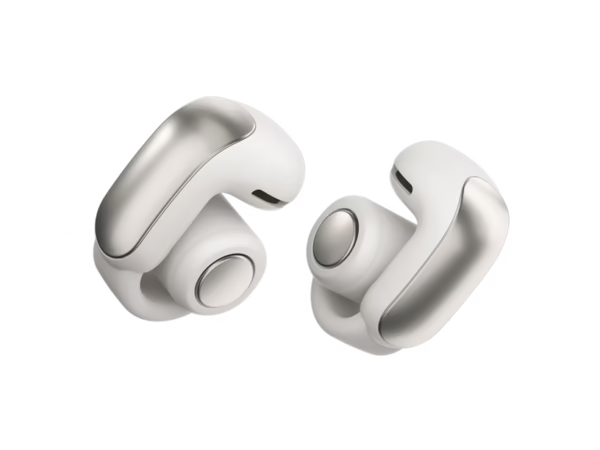
Bose Ultra Open earbuds
Bose Ultra Open Earbuds feature open-ear comfort, immersive Bose audio, Bluetooth 5.3 with multipoint, app control, water-resistant design, and up to 7.5 hours battery life—perfect for fitness, work, and everyday awareness.
How to Connect Bose Earbuds to Android Devices
- Open Settings > Bluetooth
- Turn Bluetooth ON
- Put earbuds in pairing mode
- Select your Bose earbuds from the list
- Accept pairing confirmation
Android devices may also prompt you to install the Bose Music App, which is recommended for firmware updates and EQ customization.
How to Connect Bose Earbuds to Laptop or PC
Windows 10 / Windows 11
- Go to Settings > Bluetooth & Devices
- Click Add Device
- Choose Bluetooth
- Select your Bose earbuds
macOS (MacBook / iMac)
- Open System Settings > Bluetooth
- Enable Bluetooth
- Select your Bose earbuds from the list
- Click Connect
Using the Bose Music App for Easier Pairing
The Bose Music App simplifies pairing and offers additional features:
- Guided setup
- Firmware updates
- Noise cancellation control
- EQ adjustments
- Device management
While not mandatory, using the app improves stability and overall experience.
How to Reset Bose Earbuds (If Pairing Fails)
If your Bose earbuds do not connect, a reset usually resolves the issue.
Reset Instructions
- Place earbuds in the charging case
- Keep the lid open
- Press and hold the Bluetooth button for 30 seconds
- Release and close the lid
- Wait 5 seconds
- Open the lid and re-enter pairing mode
After reset, repeat the standard pairing steps.
Common Bose Earbuds Pairing Problems and Solutions
Bose Earbuds Not Showing in Bluetooth List
- Ensure pairing mode is active
- Turn Bluetooth off and on again
- Restart your device
Bose Earbuds Keep Disconnecting
- Update firmware via Bose Music App
- Remove earbuds from paired device list and re-pair
- Avoid interference from other Bluetooth devices
One Earbud Not Connecting
- Place both earbuds back in the case
- Reset the earbuds
- Clean charging contacts
Frequently Asked Questions (FAQ)
How do I reconnect my Bose earbuds to a new phone?
Put the earbuds in pairing mode and select them from the new phone’s Bluetooth list.
Do Bose earbuds automatically connect?
Yes, once paired, they auto-connect to the last used device when Bluetooth is enabled.
Can Bose earbuds connect to multiple devices?
Newer QuietComfort models support multipoint connectivity.
Final Thoughts
Learning how to pair Bose earbuds correctly ensures you get the best performance from your premium audio device. Whether you want to know how to connect Bose earbuds, how to connect Bose earbuds to iPhone, or how to pair Bose QuietComfort earbuds, following the steps in this guide will help you connect quickly and without frustration.
For optimal performance, keep your earbuds updated using the Bose Music App and always reset them if connection issues arise.
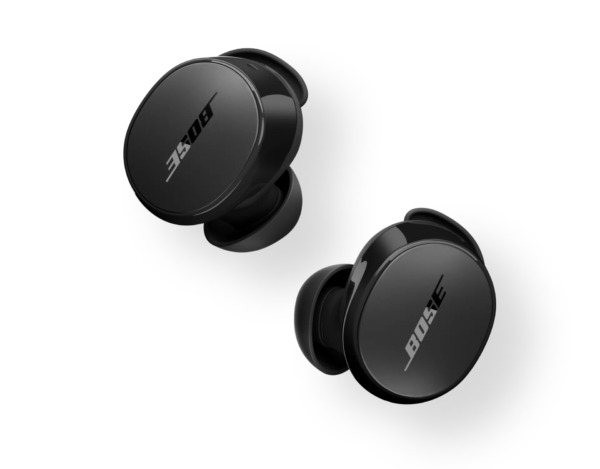
Bose QuiteComfort earbuds
Bose QuietComfort Earbuds deliver powerful active noise cancellation, signature Bose sound, Bluetooth 5.3 connectivity, up to 8.5 hours of battery life, and a secure in-ear fit—perfect for work, travel, and fitness.